MIDI Overview
Track8 treats MIDI similarly to audio:
- Linear timeline (linked to the audio timeline)
- Per-track editing with Cut/Copy/Paste
- Real-time + step recording (see MIDI Edit)
🖥 MIDI Overview
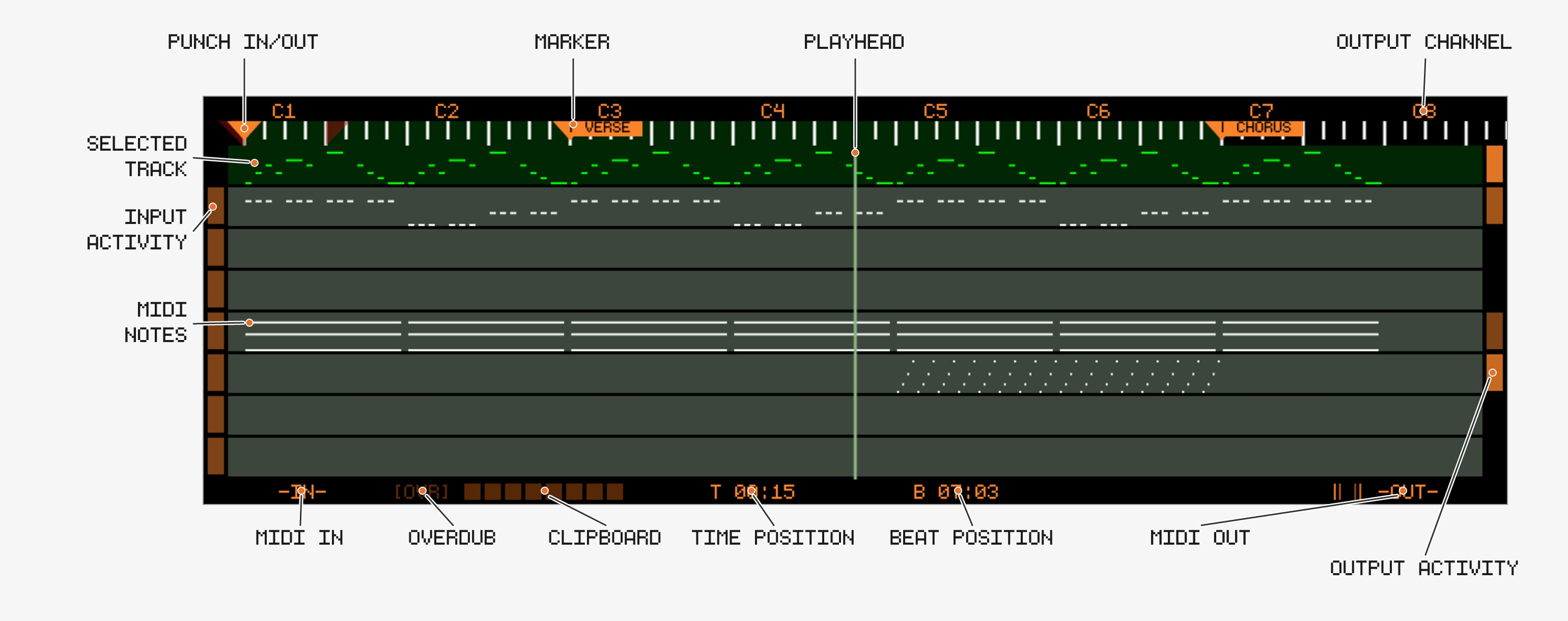
The beat ruler ends with the audio tape at 3 hours (since v1.2.4-SNAPSHOT), where playback stops (see the end of the tape); MIDI notes past it are kept but never reached.
Track Behavior
Track8 aims to make MIDI routing as simple as possible. Instead of listing all connected MIDI devices Track8 introduces a Track to MIDI Channel mapping.
- Each track = one MIDI output channel
- MIDI input → always routed to active track
- It does not matter on which MIDI Channel incoming notes/CCs are
- Channel Information of incoming MIDI signals is discarded and always routed to the selected Track
Devices flagged as control surface in
UTILITY→MIDI→DEVICEare the exception: their CCs drive MIDI Remote Control instead of being recorded (since v1.1.4).
Companion app: a track also plays into every plugin slot of the rack whose receive channel matches the track’s channel, and MIDI a plugin emits follows the rule above — channel discarded, recorded on the selected track (since v1.2.3).
🎛 Encoders
Press any encoder to cycle through six encoder modes:
CHANNEL → OFFSET → SCROLL → REC OFFSET → QUANTIZE → VARISPEED
Or jump directly with 
CHANNEL, 2 = OFFSET, 3 = SCROLL, 4 = REC OFFSET, 6 = QUANTIZE, 7 = VARISPEED.
CHANNEL
- Sets the MIDI output channel (1–16) per track
- Channels already used by another track are skipped
- Playback stops while changing channels
- After channel 16 the encoder reaches every device flagged
MPEon the DEVICE screen (MPE Osmose): the track then plays into that device alone, one MIDI channel per note, see MPE devices (since v1.2.4-SNAPSHOT)
OFFSET
- Per-track MIDI timing offset, -100ms to +100ms
- Use

SCROLL
- Encoder 8 scrolls the timeline, Encoder 2 changes the scroll increment — the same encoder as the grid in MIDI Edit and Audio Edit, so one external knob serves all four screens (since v1.2.4-SNAPSHOT); it was Encoder 1 up to v1.2.3
- Encoder 3 is MOVE MARKER: with the playhead on a marker, turn to stage a move by SCROLL steps, push to apply — the same as on the Audio Overview (new in v1.2.2)
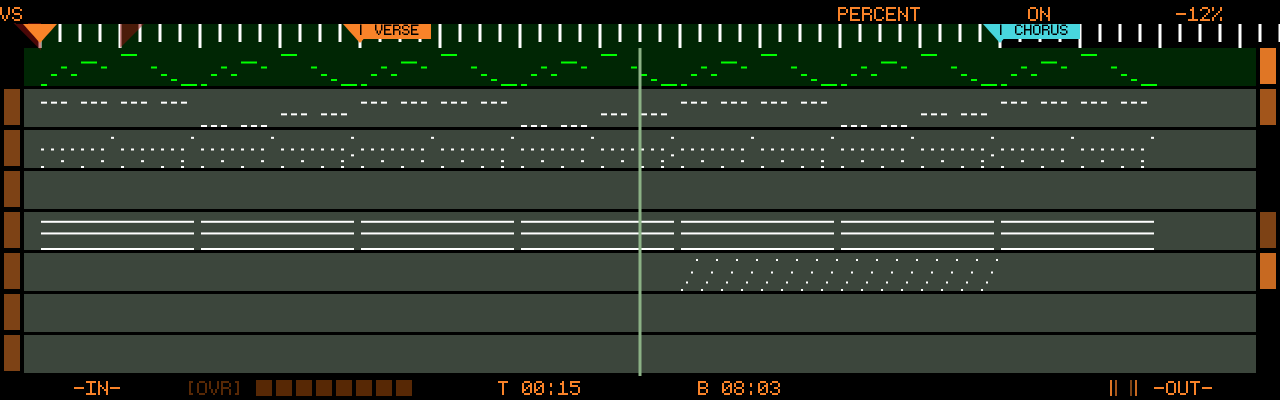
- While SCROLL is active, the beat ruler shows the scroll increment as shorter ticks between the beats, like the grid in MIDI Edit (since v1.2.2)
- Encoder 7 zooms the timeline, 0.25x to 4x around the playhead (since v1.2.2). The zoom is remembered per overview (Audio and MIDI zoom independently) and resets to 1x on startup
- A mouse scroll wheel (USB) also scrolls the timeline (since v1.1.1)
- Encoder 5 → SPLICE: insert or remove time at the playhead (new in v1.2.2)
- Turn clockwise to stage blank time, one SCROLL step per click; counter-clockwise to stage a removal. The overview previews the result — notes, markers and loop/punch points are drawn where they will end up, an insert shows the blank as a band, a removal a cut line — and the encoder label shows the amount (
+1 bar,-2 beats) - Push Encoder 5 to apply. Any button press (PLAY included), Encoder 2 or Encoder 8, switching screens or the encoder mode discards the staged splice — only Encoder 5 itself and SHIFT leave it alone. Nothing changes until you push; the drawing is the preview
- It is the same operation as on the Audio Overview: everything behind the splice point moves — all MIDI tracks (notes, CC, pitch-bend, aftertouch), all audio tracks with their automation, and the markers, loop and punch points. CC / pitch-bend / aftertouch set inside a removed span carry their last value over to the splice point
- Removals are limited to 1:30 per splice and refused over a tempo or signature marker; see the Audio Overview page for the full rules
- Turn clockwise to stage blank time, one SCROLL step per click; counter-clockwise to stage a removal. The overview previews the result — notes, markers and loop/punch points are drawn where they will end up, an insert shows the blank as a band, a removal a cut line — and the encoder label shows the amount (
REC OFFSET (new in v1.2.1)
- Per-track MIDI record offset, 0 to -50 ms — the MIDI counterpart of the audio REC OFFSET
- Recorded notes and CCs are stored this much earlier than they arrive. Use it when your takes land late on the grid: what you hear while recording (metronome, tracks) reaches your monitors after the audio output latency, so notes played in time with it arrive that much late
- Start with roughly your audio buffer latency and adjust by ear; it applies to live recording only (not step record)
- Notes from USB MIDI devices and from the 5-pin input are placed alike, at the moment they arrive (since v1.2.4-SNAPSHOT). USB notes used to arrive one audio buffer later: if you set
REC OFFSETfor a USB device before, check it again - Turn left to increase (shifts earlier), like the audio REC OFFSET
QUANTIZE (new in v1.2.1)
Record quantize: while enabled, incoming MIDI notes are snapped to the grid as they are recorded.
- Encoder 6: quantize grid,
1/4to1/64— push to toggle triplets (e.g.1/16T), like the grid encoder in MIDI Edit - Encoder 7: enable/disable record quantize
- Encoder 8: strength,
0%to100%—100%puts notes exactly on the grid, lower values move them only part of the way, keeping some of the human feel - The note start is quantized to the nearest grid line; the note keeps exactly the length you played
- Applies to notes as they are stored, on all further takes until switched off — already recorded notes are untouched (quantize those with the
EDITtool in MIDI Edit) - Step recording is unaffected: it always snaps to the step grid
- The setting is saved with the project
VARISPEED (since v1.1.5)
- Encoder 6: display in Percent or Semitones
- Encoder 7: enable/disable Varispeed
- Encoder 8: amount — positive = faster, negative = slower (-100% = half speed, +100% = double speed, or ±12 semitones)
- Recording with Varispeed is limited to one track, and the amount cannot be changed while a recording is running
- Playback audio is degraded; recorded audio is resampled at a higher quality
🔘 Track Buttons
- Press a Track Button to select the active track
Track Button→ Mute / Unmute- Hold
Track Button→ Solo / Un-solo (since v1.1.2) - Hold
Track Button→ select the same track for Audio and MIDI (since v1.1.3)


Solo behavior
- Solo ignores the Mute state of the track
- Soloed tracks are rendered in the highlight color (orange in the default theme), all other tracks in their muted color
- Toggling any Mute (
Track Button) exits solo mode
🎹 MPE devices (Osmose)
An MPE instrument (Expressive E Osmose, ROLI Seaboard, LinnStrument, …) plays every note on its own MIDI channel and sends that note’s pitch bend, pressure and timbre on the same channel. Track8 records and plays this back (since v1.2.4-SNAPSHOT):
- Flag the instrument’s port
MPEon the DEVICE screen. An Osmose is flagged for you the first time it is plugged in: itssound engineport isMPE, itsplay,haken,daw controlanddin interfaceports areIGNORE(they carry editor and DAW-control traffic that would otherwise be recorded and echoed) - On the MIDI Overview, turn the
CHANNELencoder past channel 16 toMPE Osmoseon the track you record into. The track now plays only into that device, every note on a member channel of its own, and the live input is echoed the same way - Record as usual. Each note keeps its own bend, pressure and timbre: move, quantize, copy or undo a note and its expression goes with it. Pitch bend, CCs and aftertouch played on the instrument’s master channel land in the track’s lanes as before
What to set on the Osmose (MIDI I/O tab): haken local control off, so the keys reach the sound engine through the Track8 (it resets to on after every Osmose reboot); usb haken mode disabled. The Osmose’s own pitch bend range on the sound engine port is ±96 semitones; Track8 sends back exactly what it recorded, so nothing has to be matched. Its sound engine answers on channels 2–14 only, and Track8 spreads the notes of an MPE Osmose track over exactly those.
Playing a plain keyboard into an MPE track works too: its notes are spread over the device’s channels, its bend and CCs go to the master channel. The reverse, an MPE port into a channel track, records the notes and the master channel’s data; the per-note expression is left out.
In MIDI Edit a note with expression shows its bend as a line leaving the note’s row (one row per semitone), its pressure as a band under the note and its timbre as dots above it. Per-note expression cannot be edited yet; the master channel’s lanes can.
The companion app records and plays MPE the same way, from USB and Bluetooth controllers and to synth apps through its own Track8 MPE MIDI device (since v1.2.4-SNAPSHOT).
Notes recorded this way are saved as a standard MPE file (track<N>.mid: one voice per channel 2–16, the track’s own data on channel 1), so a DAW reads the expression too.
📊 Indicators
Input Activity
- Shows incoming MIDI channel
Output Activity
- Shows outgoing MIDI activity (for an
MPEtrack: on any of its channels)
Quick Settings
- Touch and hold the track area (about a second) to open the Quick Settings panel with the everyday Utility toggles (MKR LEG, MOD HI, BIG TIME, SHIFT HOLD, SHIFT NAV, TIMED JUMP, SHIFT PLAY, PASTE JMP, SCROLL SND, TAPE SND, OVERDUB) and the FREE BAR locate, which jumps to the next bar that is empty on all audio and MIDI tracks; see Touch (since v1.2.2)
Time / Beat readout
- Touch the time / beat readout at the bottom of the screen to toggle BIG TIME, the big translucent overlay on the left half of the screen with the time / bar-beat readout and the current / next marker names with a countdown — the same toggle as on the Audio Overview (since v1.2.2)
Clipboard
- Same behavior as audio
- The indicator highlights the origin Track of the clipboard content
- Cut/Copy always adheres to the regions defined by Markers
- Hold

- Paste always goes to the Playhead position on the selected track and — like audio — replaces what is there for the length of the clipboard (notes, controllers, pitchbend, aftertouch); it does not merge onto existing events (since v1.2.1, before that Paste merged)
- The length of the clipboard is the copied region, trailing silence included, exactly like the audio clipboard: pasting four copied bars whose notes end after bar two still clears all four bars at the destination (since v1.2.3; before that a paste only cleared up to the last copied event). A copy “to the end of the tape” is as long as its last note
- Touch the indicator to open the MIDI Clipboard Modifier and mangle the copied notes before pasting (since v1.2.3)
- Each action confirms on screen:
Copy Loop: Audio + MIDI + Markers,Cut Loop: Audio + MIDI + Markers,Paste Audio + MIDI + Markers. When Mutes leave audio tracks out of the section, the overlay counts what is actually taken —Copy Loop: 7/8 Tracks + MIDI + Markers, orNo Audio (muted)when every audio track is muted - LOOP + Paste writes back every copied MIDI track: one that was silent in the copied section clears its destination span, like the audio side pastes silence there; tracks muted at copy time are left alone (since v1.2.2)
- After such a LOOP Cut/Paste,
Recordundoes the MIDI and the audio half in one press (UNDO Audio + MIDI), Markers included, and

🚀 Undo / Redo
MIDI has its own Undo stack, separate from audio.
Record→ Undo the last MIDI operation- Both confirm what they touched with a short overlay, e.g.
UNDO Track 2: BassorREDO all tracks(new in v1.2.1) - A SPLICE is undone as a whole: one Undo reverts the MIDI and the audio side, from either screen (markers keep their post-splice positions) (new in v1.2.2)
🔁 Loop & Punch
- Same concept as audio workflow
- Applies to MIDI recording
Threshold Recording via MIDI (since v1.1.3)
Incoming MIDI notes can trigger threshold recording. For this you have to be in one of the MIDI views, or A && M recording has to be enabled in the Project Settings.
🎧 MIDI Monitor (new in v1.2.1)
Incoming MIDI is echoed to the output channel of the selected track. This can now be switched off independently of the audio monitor:
- In the Project Settings, push Encoder 8 to cycle between
AUDIO MONandMIDI MON, then turn to setOFF/ON/PUNCH PUNCHechoes input only while the playhead is inside the punch brackets — whether or not punch recording is armed — so a rehearsal pass sounds exactly like the recorded result (new in v1.2.1)- Defaults to
ON - Note-off messages always pass, so no notes get stuck
🕰 MIDI Sync
Clock and MTC sync are configured in UTILITY → MIDI (see Utility):
SYNC MODE:CLOCKorMTCSYNC ROLE:MASTERorSLAVE- Clock mode: send/receive SPP, Transport and Clock individually
- MTC mode: frame rate (24/25/29.97/30 fps) and, as slave, an MTC offset
- Both modes work on the 5-pin MIDI ports and on USB MIDI, as master and as slave (MTC master over USB since v1.2.4-SNAPSHOT)
The companion app has the same sync, over CoreMIDI (USB, Bluetooth, network sessions), since v1.2.4-SNAPSHOT.
Clock sync has been hardened over several releases (tighter DIN clock since v1.1.1, larger averaging and outlier detection for slave sync, further MIDI scheduling and jitter improvements new in v1.2.1).
The DEVICE, CONTROL and CH NAMES buttons on this screen configure MIDI Remote Control, channel names and MIDI Device Profiles (per-channel note/CC names for drum machines and synths, since v1.2.1).
🔀 Manual MIDI routing (expert)
Out of the box Track8 needs no MIDI routing: every track has a channel, every connected device hears everything, and each device listens on its own channel. Your playing is echoed to all devices, and clock or MTC goes to all of them.
In bigger setups, with a sequencer such as a Hapax that echoes MIDI itself, or a router, this can make MIDI go round in a loop, or a device gets clock it should not have. For those setups each device has a ROUTE page (since v1.2.4-SNAPSHOT), on the hardware and in the companion app:
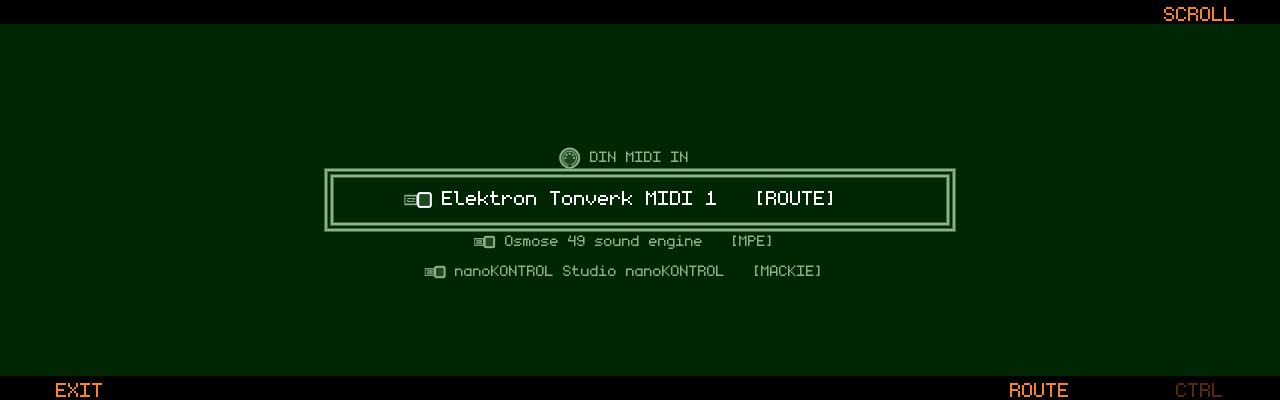
- Go to
UTILITY→MIDI→DEVICE, scroll to the device with Encoder 8 - Press Track Button 7
ROUTE. Encoder 8 steps to the next device without leaving the page
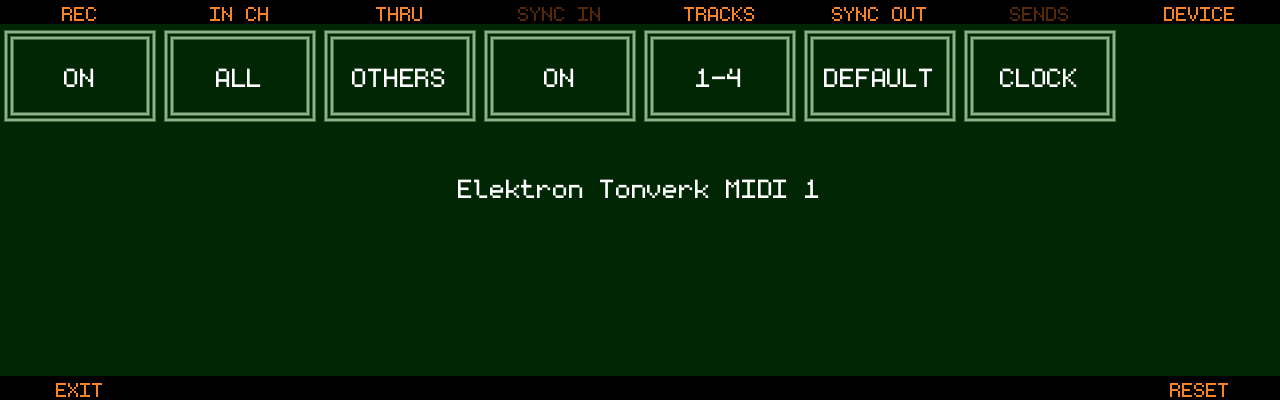
| Encoder | Setting | What it does |
|---|---|---|
| 1 | REC | ON: what you play on this device is recorded. OFF: it is only echoed |
| 2 | IN CH | ALL, or one channel: only that channel of the device is recorded and echoed, the rest is ignored. Handy for a sequencer that sends many parts |
| 3 | THRU | Where your playing on this device is echoed: ALL devices, OTHERS (everything but back to this device), or OFF (nowhere). MIDI MON still switches all echo on and off |
| 4 | SYNC IN | OFF: Track8 ignores this device’s clock, transport and MTC as slave. Only matters with SYNC ROLE SLAVE |
| 5 | TRACKS | Which track channels the device hears: ALL, OFF, or your own set. Push Encoder 5 (or touch the box) to pick channels: Encoder 1 moves, pushing it or touching a channel switches it, Track Button 1 DONE |
| 6 | SYNC OUT | What the device gets as sync master: DEFAULT (what SYNC MODE says), CLOCK, MTC or OFF. A device never gets both |
| 7 | SENDS | Shows what the device actually gets |
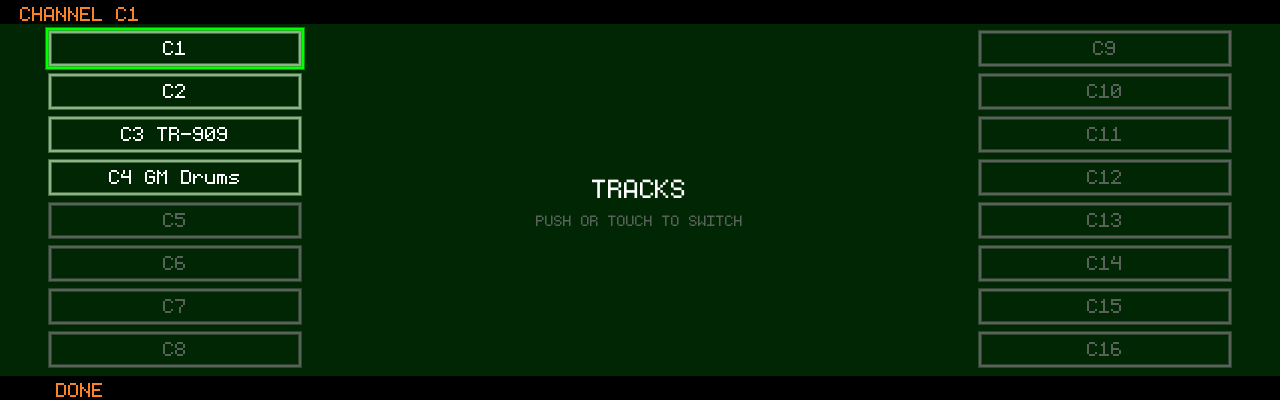
The picker shows your channel names, so a set reads like a list of synths. Here the Tonverk hears tracks on channels 1 to 4 and never gets its own playing back (THRU OTHERS).
RESET(Track Button 8) puts the device back to the defaults- A device whose routing was changed shows
[ROUTE]in theDEVICElist, so you can always see which devices are set up by hand - The settings belong to the device and stay when you switch projects or unplug it
SYNC OUT: withSYNC MODECLOCKyou can still send MTC to one device (a DAW, a video player) while the others get clock, and the other way round. Those devices use the clock and MTC settings of theMIDIpage. To change the settings of the other type, switchSYNC MODEover, change them and switch back; do this with the transport stopped, because in the meantime the other devices get the other typeDIN MIDI(hardware) stands for both sockets:TRACKSandSYNC OUTact on MIDI Out, the other settings on MIDI In. LeaveTHRUonALLfor DIN if a keyboard on DIN In plays a synth on DIN Out:OTHERSmeans “not back out of DIN”- An
MPEdevice has noIN CHandTRACKS: its tracks pick it directly. ACTRLcontroller only hasSYNC IN.MACKIEandIGNOREdevices have nothing to route - Up to eight devices can have changed
TRACKS,SYNC OUTorTHRU OTHERSat once. A ninth is sent like an unrouted device, and its page says so
Examples
- A sequencer that plays its own synths and is recorded by Track8 (Hapax):
THRUOFF,IN CHthe part you want to record,TRACKSthe channels it should pass on from Track8’s tracks (orOFF) - Keyboard on DIN, synths on USB, nothing echoed back to the keyboard: DIN
THRUOTHERS,TRACKSOFF - Clock-only device:
RECOFF,THRUOFF,TRACKSOFF - MTC to a DAW, clock to everything else:
SYNC MODECLOCK, the DAW’sSYNC OUTMTCandTRACKSOFF - Track8 as slave to one master only:
SYNC INOFFon every other device