Editing MIDI
🖥 MIDI Edit (Notes)
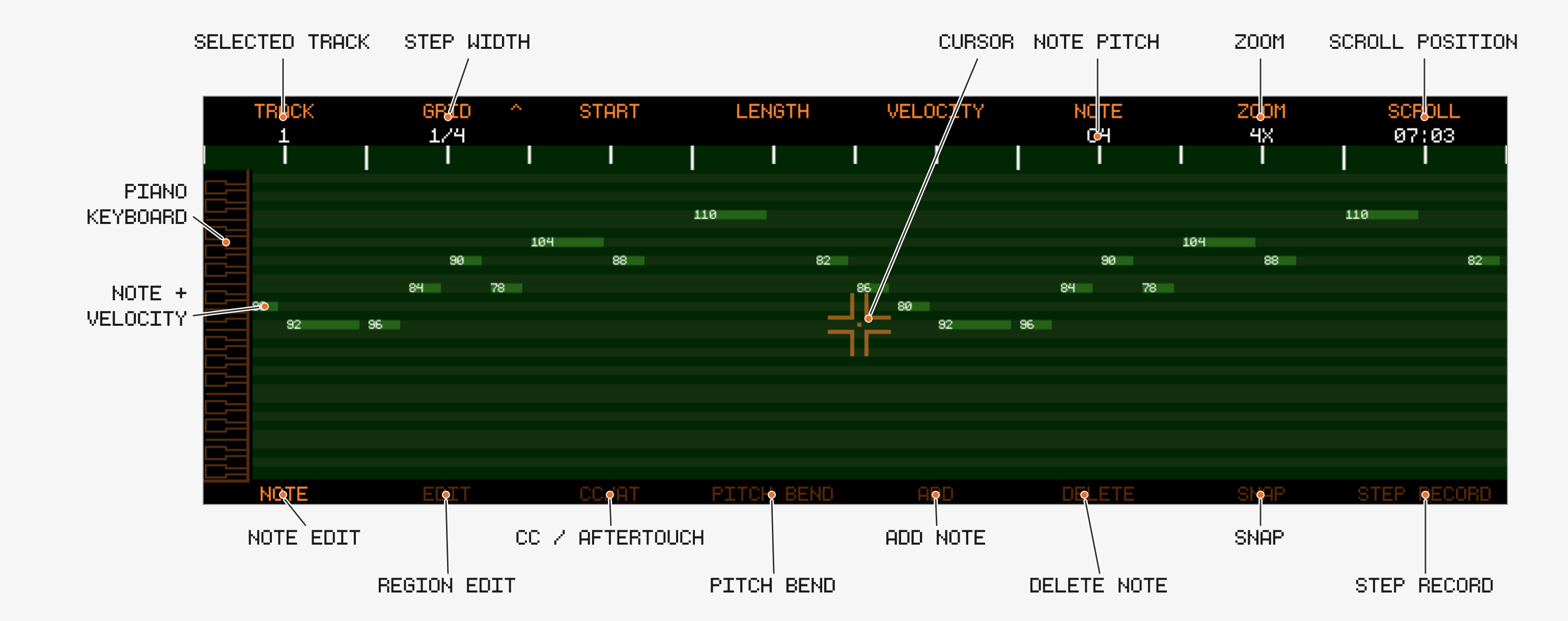
The MIDI Edit screen has four sub-views, selected with the first four Track Buttons:
| Track Button | Sub-view |
|---|---|
| 1 | Note — select and edit single notes |
| 2 | Edit — region tools: Transpose, Quantize, Velocity, Nudge |
| 3 | CC/AT — draw CC and Channel Aftertouch automation |
| 4 | Pitch bend — draw Pitch Bend automation |
Controls shared by all sub-views:
- Encoder 1: selected track
- Encoder 2:
GRIDresolution — push to toggle triplets (new in v1.2.1) - Encoder 7: zoom —

- Encoder 8: scroll along the timeline
Left/Right: nudge the playhead by grid steps,Left/Right: jump between markersPlay: jump to the edit region start; playback stops at the region end unlessLOOPis enabled (since v1.2.0)- Push Encoder 4 / Encoder 5 in the
Editview sets the edit region start/end at the playhead (since v1.1.2) - Selection off (since v1.2.2): press Track Button 2 again while in the
Editview to switch the selection off — the piano roll draws all bright,START/ENDread-, playback runs past the region end andNO SELECTIONwhile it is off. Entering theEditview or the screen always starts with the selection on
🎹 Note Editing
Profile piano roll (since v1.2.1)
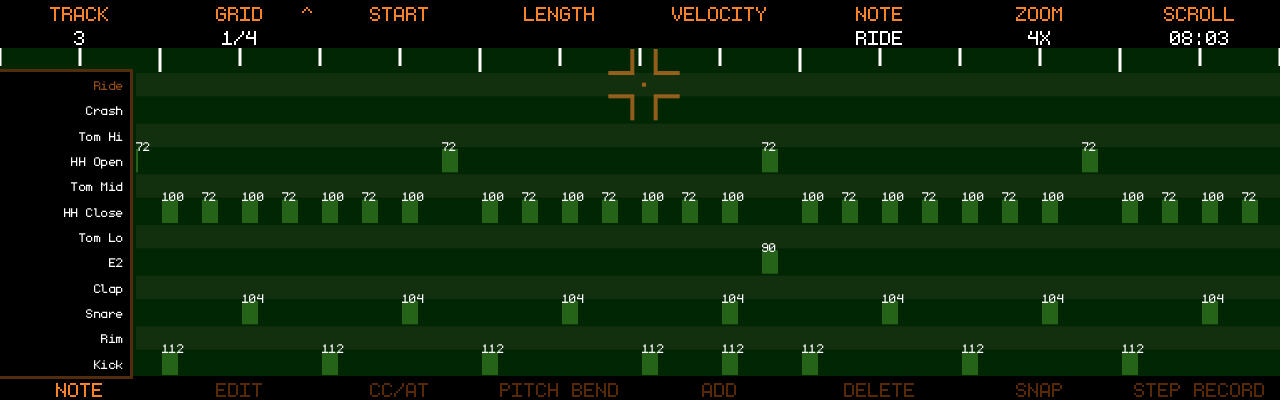
If the track’s MIDI channel has a MIDI Device Profile
with named notes, the piano on the left is replaced by those names — one row
per drum sound, expanded to fill the screen for up to 15 rows (more rows keep a readable height and scroll around the cursor).
Notes with data that are not in the profile still get a row (labelled with the note name). The
note cursor (Encoder 6) steps from row to row; SNAP is off in this view.
Editable Parameters
- Start (Encoder 3)
- Length (Encoder 4)
- Velocity (Encoder 5)
- Pitch / Note (Encoder 6)
Workflow
- Select a note (move the cursor onto it with Encoder 6 / Encoder 8)
- Press encoder (3–6) to enter edit mode
- Edit the value
- Press again to confirm
Unconfirmed edits are discarded when leaving the screen. Hold 
Expression overlay (since v1.2.4-SNAPSHOT)
A note recorded from an MPE device carries its own pitch bend, pressure and timbre. The piano roll shows the bend as a line that leaves the note’s row by one row per semitone, the pressure as a band under the note and the timbre (CC74) as dots above it. Editing the note moves its expression with it; the expression itself cannot be edited yet.
Note colors (since v1.1.2)
The selected note is displayed bright, all other notes in the muted color. This makes velocity values easier to read and clearly shows which note is selected.
Add / Replace / Delete
With Record enabled (press Record):
Track 5→ Add a note at the playhead (or Replace the selected note); length = grid sizeTrack 6→ Delete the selected note
Play the selected note (since v1.2.2)
With Record off, Track 6 shows Play: it sends the selected note once to the track’s MIDI output channel, with its stored velocity and length, so you can check an edit without starting playback. Pressing again while the note still sounds retriggers it. The preview ignores the MIDI Monitor setting.
🧲 SNAP Modes (since v1.1.2)
Track 7 cycles the cursor snap mode in the Note view: SNAP (off) → HARM SNAP → TRKR SNAP.
TRKR SNAP
- Behaves like a tracker: all notes are ordered by timestamp and from high to low
- Scrolling (Encoder 8) traverses all notes in the viewport
- If there are no notes in the desired direction, scrolling falls back to
GRIDjumps
HARM SNAP
- A harmony-aware snap algorithm
- Scrolling (Encoder 8) finds the closest note, preferring the time axis but also moving in pitch if a closer note exists
- The
NOTEencoder (Encoder 6) snaps to the closest note in the pitch axis - Both directions fall back to
GRIDif no notes are found
Snap also affects mouse-wheel scrolling, and is disabled while playback is running.
⏱ Grid System
- Controls timing resolution (down to 1/64)
- Push Encoder 2 (
GRID) to toggle triplet subdivisions, e.g.1/8→1/8T(new in v1.2.1) - Affects:
- Step recording
- Quantize / Nudge step size
- Playhead nudging and note start/length steps
➕ Step Recording
- Toggle with
Track 8(also arms record) - Played notes are added at the playhead, which advances automatically
- Note length = grid size
- While holding keys, press
Right/Leftto extend/shrink the note by grid steps - The note cursor follows what you play, so a note entered above or below the visible range scrolls into view. A chord struck at once is centred when it fits on screen; otherwise the view stays on the part nearest the cursor (new in v1.2.1)
🛠 MIDI Tools (Edit view)
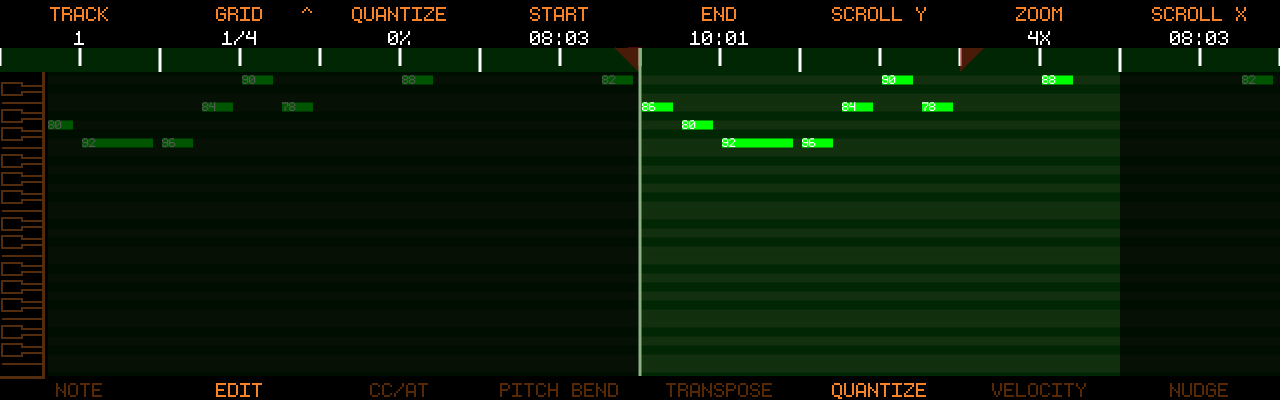
Work on the edit region, then confirm:
- Encoder 4 / Encoder 5: set region start/end (push = set at playhead, since v1.1.2)
- Push Encoder 8: move the whole region to the playhead
- Encoder 3: adjust the selected tool’s amount — push Encoder 3 to apply
- Cut/Copy in this view uses the edit region instead of marker bounds
- Hold
Select the tool with Track Buttons 5–8:
Transpose (Track 5)
- Shift notes in semitones (±127)
Quantize (Track 6, overhauled in v1.2.1)
- Snaps notes to the grid, adjustable strength in 5% steps
- Turning past 100% switches to forward-only quantize; turning below 0% switches to backward-only quantize (new in v1.2.1)
Quantize,SwingandHumanize- Swing (±50%) and Humanize (0–100%) add groove/timing variation
Velocity (Track 7)
- Scales note velocity (±100%), fine steps with
Nudge (Track 8)
- Moves notes by grid steps
For generative edits — velocity ramps, scale snapping, turning a rhythm into a melody, harmonizing, strumming — copy the notes and open the MIDI Clipboard Modifier from the clipboard indicator on the MIDI Overview (since v1.2.3).
🎛 CC / Aftertouch Editing
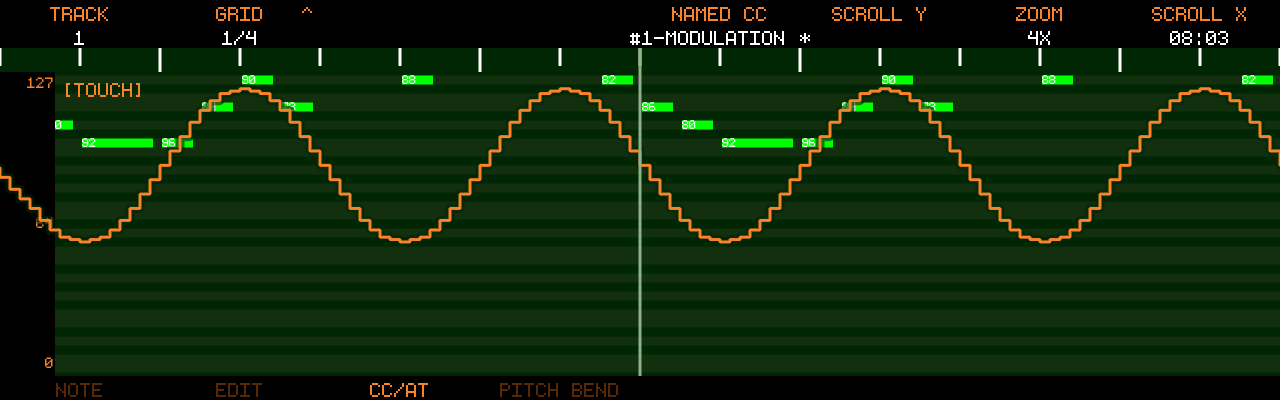
Behavior
- Draw via touchscreen, range 0–127
- Encoder 5 selects the CC; push Encoder 5 to cycle the CC list mode:
- Named CCs (standard controllers — or the device’s own list when the track’s channel has a MIDI Device Profile with controllers, since v1.2.1)
- Free CCs (all numbered controllers not in the named list)
- AFTERTOUCH — Channel Aftertouch recording and editing (since v1.1.3)
- Parameters that already contain data are marked with
*(since v1.2.0)
Special Cases
- Pedal CCs → ON/OFF only (0/127)
- Pitch Bend → separate lane (
Track 4)
Clearing
Track 3→ Clear the selected CC (or Aftertouch)Track 4→ Clear Pitch Bend- Clearing respects Marker positions: only the region between the surrounding markers is cleared, same as audio automations (new in v1.2.1)