Utility
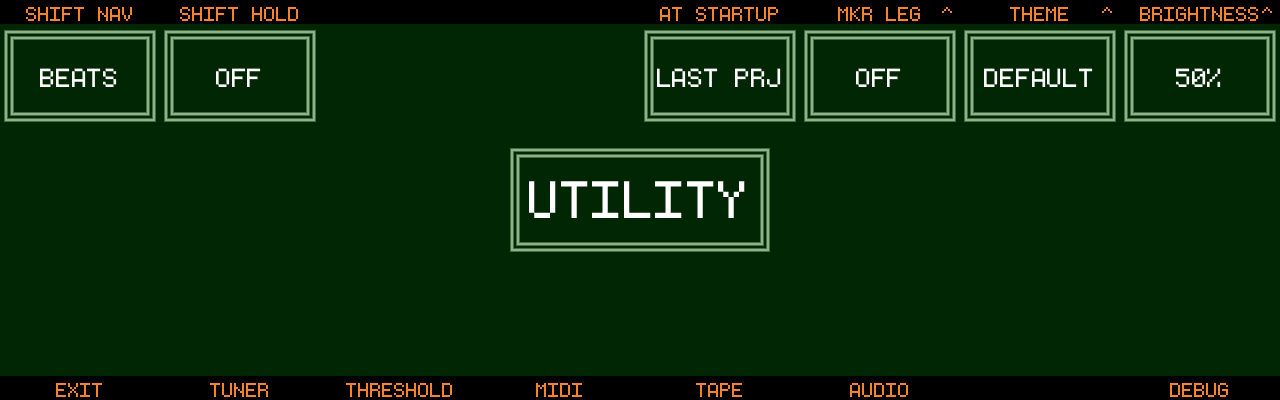
Global device settings that apply to every project. Open the Settings screen and press UTILITY (Track 2) — or simply press Settings twice (new in v1.2.1). EXIT (Track 1) returns to Settings.
Settings
Encoders with a ^ symbol do something when pushed: most hold more than one setting (push to cycle), CLICK plays its sound.
| Encoder | Setting | Values |
|---|---|---|
| 1 | SHIFT NAV | MARKER / BEATS — what SHIFT + ← → does: jump between markers or by single beats |
| 2 | SHIFT HOLD | OFF / NAMES — show the track name overlay while SHIFT is held |
| 3 | TIMED JUMP | OFF / AT BEAT / AT BAR — with MARKER navigation, marker jumps during playback wait for the next beat/bar so you stay in time |
| 4 | CLICK | The metronome sound. WOOD is the click Track8 has always had; BEEP plays clean sine pips an octave apart, like a computer DAW; RIM is a short, dry rimshot that cuts through a loud drum or guitar mix; BELL is a drum-machine cowbell that carries in a loud room; LOW is a soft, low thump that leaks least from headphones into a nearby microphone. All of them play equally loud at the same metronome level. Push the encoder to hear the bar click of the selected sound, stopped or playing. USER plays your own clicks: bin/static/tic.wav (bar) and bin/static/toc.wav (beat) on the SSD, WAV or AIFF, up to 250 ms each, at their own level. It is offered only while both files are there. Track8 comes with the original click samples in that place; replace them on a computer in USB-disk mode, and Track8 uses the new files from the next start (since v1.2.4-SNAPSHOT) |
| 5 | AT STARTUP | LAST PRJ / NEW PRJ — with NEW PRJ, Track8 offers a fresh project (with a generated name) on every start (since v1.1.4) |
| 6 | Feature toggles (push to cycle) | see below |
| 7 | THEME / SHADER / TEMP | Select a color theme (including a colorblind theme, since v1.1.3). Push to cycle to SHADER — the display filter: OFF, BLOOM (the horizontal glow, the former ON), CRT (phosphor glow, soft scanlines, shaded corners), SCANLINE (the lines and corners without the glow), SOFT (a light anti-aliasing blur), SHARP (crisper text and edges) and, only while a bin/static/bloom.glsl of your own exists on the SSD, CUSTOM (that file) — and once more to TEMP, the display colour temperature from 6500 K (neutral) down to 2500 K in steps of 500 K, which warms whichever filter is active, OFF included. A change takes effect about half a second after the last click, with a brief flicker while the screen compositor restarts (since v1.2.2; Track8 hardware only — the companion app stores the setting but shows no filter) |
| 8 | BRIGHTNESS / STANDBY | Screen brightness. Push for Standby: OFF / 1m / 5m / 15m / 30m / 60m of inactivity before the screen dims to a screensaver — only while playback is stopped; any key wakes it up (since v1.1.3). Playback and recording count as activity, so the timer starts when the transport stops, whether it was stopped on the device or over MIDI (since v1.2.2) |
Create your own color themes with the theme editor: https://thingstone.com/theme-editor
The companion app has a built-in theme editor that
previews every change live on the real UI and exports the finished
theme.json (since v1.2.2).
Feature toggles (Encoder 6, push to cycle)
All of these (together with SHIFT NAV, SHIFT HOLD, TIMED JUMP and OVERDUB) are also one touch away on the overviews: touch and hold the track area of the Audio or MIDI Overview to open the Quick Settings panel, see Touch (since v1.2.2).
-
MKR LEG — draw a vertical line under each marker for easy visual reference (since v1.1.4). On the overviews the legs stop at the track area, like the waveform, so the input/output meters stay clear of them (since v1.2.2)
-
MOD HI — highlight pasted/modified audio in orange until the next edit or view switch (since v1.1.4). During multi-take recording nothing is highlighted while the takes are still open; the take you kept is highlighted once the session ends (punch off) (since v1.2.2)
-
SCROLL SND — tape-style FFW/RWD sound while navigating and scrolling (since v1.1.5). A SHIFT + Play jump is voiced too: a short fast-wind sweep whose loudness traces the material between the playhead and the target (since v1.2.2)
-
SHIFT PLAY — START / MARKER 1: where SHIFT + Play jumps (since v1.1.5). Reads
START MKRwhile a marker carries the start flag: SHIFT + Play then always goes to that marker, and the setting takes over again once the flag is removed (new in v1.2.2) -
PASTE JMP — after a paste, jump the playhead to the end of the pasted region to quickly fill the tape with a repeating pattern (since v1.2.0)
-
TAPE SND — tape-stop effect on stop: OFF / 0.4s / 0.8s / 1.5s tail (new in v1.2.1)
-
BIG TIME — a big translucent overlay on the left half of the Audio and MIDI Overview, readable from across the room (new in v1.2.1). Shows the time / bar-beat readout (
T 00:00/B 01:01) with the markers between them —current > next— and a progress bar with abars:beatscountdown to the next marker below; name your markers after chords or song sections and read the changes while playing. Unnamed markers show as their number (M: 3); after the last marker the next slot readsM: -and the countdown--:--(marker info since v1.2.2). Also toggled by touching the time / beat readout at the bottom of either overview (since v1.2.2):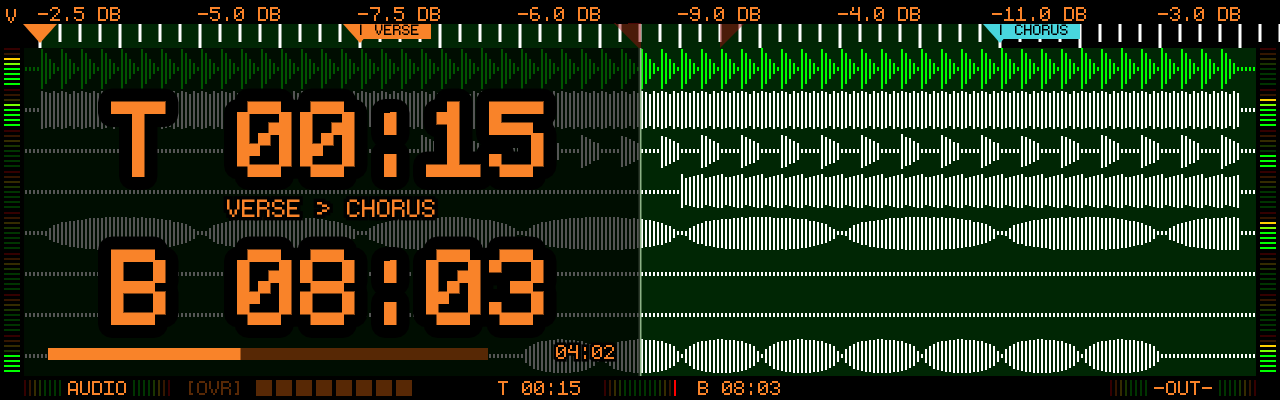
Sub-screens
The track buttons lead to the Utility sub-screens. EXIT (Track 1) always returns to the Utility hub.
Tuner (Track 2)
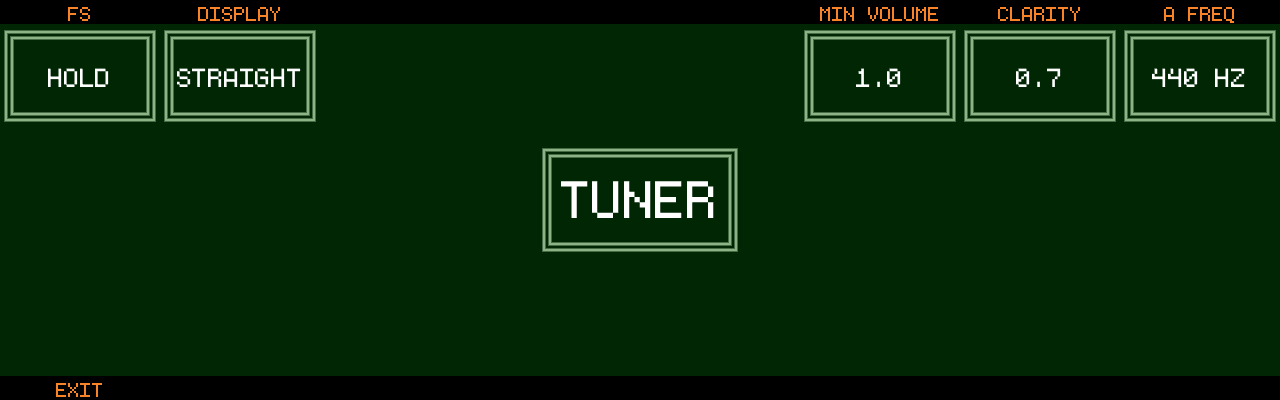
- FS — HOLD / TOGGLE: how the footswitch activates the tuner (with FOOTSWITCH set to TUNER in Settings)
- DISPLAY — STRAIGHT / CIRCLE
- MIN VOLUME — signal level gate below which the tuner reads silence
- CLARITY — pitch-detection sensitivity
- A FREQ — reference tuning of A in Hz
- Low, decaying notes track more reliably — improved compatibility with 5-string basses (new in v1.2.1)
Threshold Recording (Track 3)
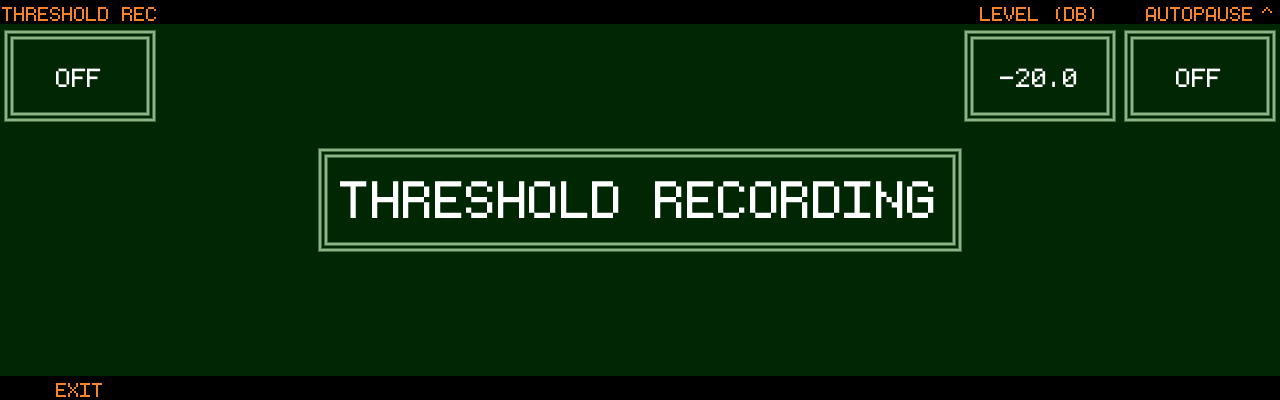
Start recording automatically when the input crosses a level.
- THRESHOLD REC (Encoder 1) — ON / OFF
- LEVEL (dB) (Encoder 7) — trigger level
- AUTOPAUSE (Encoder 8) — OFF or a number of silent seconds after which recording pauses; it resumes on the next signal (since v1.1.3)
- PAUSE ON (push Encoder 8) — OFF / BEAT / BAR: make the autopause always stop the playhead on a beat or bar (since v1.1.3)
- MIDI notes also trigger threshold recording — when you are in a MIDI view
or
A && Mrecording is enabled in the project settings (since v1.1.3)
MIDI (Track 4)
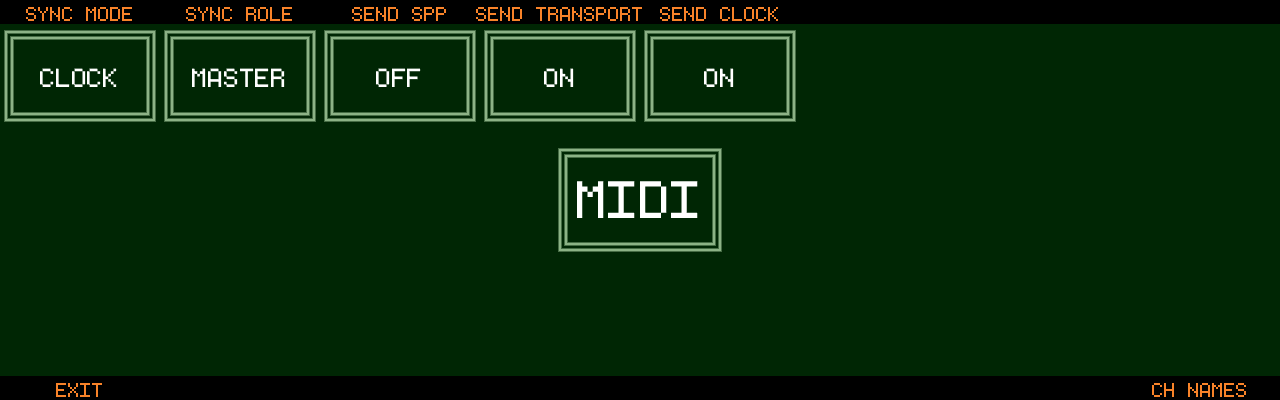
- SYNC MODE — CLOCK or MTC
- SYNC ROLE — MASTER or SLAVE
- As Clock master: SEND SPP / SEND TRANSPORT / SEND CLOCK
- As Clock slave: RECV SPP / RECV TRANSPORT / RECV CLOCK
- As MTC slave: MTC OFFSET (minutes/seconds)
- With MTC: FRAME RATE — 24 / 25 / 29.97 / 30 fps
- Clock and MTC are sent and received on the 5-pin MIDI ports and on USB MIDI alike. As MTC master, timecode also goes out over USB (since v1.2.4-SNAPSHOT). USB MIDI is now timed as tightly as the 5-pin output: every clock tick and note leaves at its exact moment (since v1.2.4-SNAPSHOT).
- DEVICE and CONTROL — flag a MIDI device for remote control and
edit control mappings, see MIDI Remote Control
(since v1.1.4). A device can also be flagged
MACKIE: a Mackie Control surface that works without mappings, see Mackie Control surfaces (since v1.2.4-SNAPSHOT) - ROUTE (on the
DEVICEscreen, Track Button 7) — per-device MIDI routing for bigger setups: recording, echo, channels and clock / MTC per device, see Manual MIDI routing (since v1.2.4-SNAPSHOT) - CH NAMES — name your MIDI channels and bind a MIDI Device Profile per channel (Encoder 1 picks the row, Encoder 8 the profile; since v1.2.1)
Tape (Track 5)
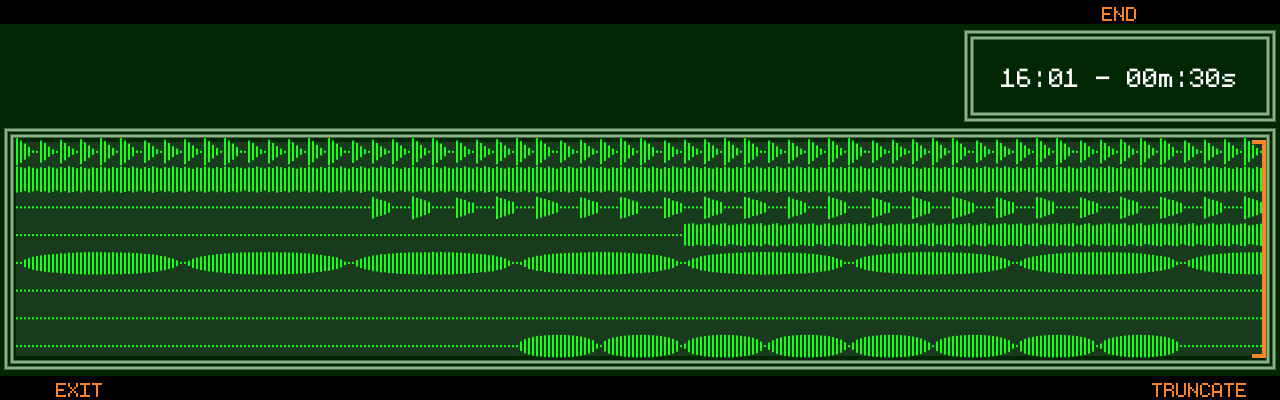
Shows all 8 tracks of the current project’s tape.
- END (Encoder 7/8) — move the end point in whole bars
- TRUNCATE (Track 8) — cut the project to the end point, after a confirmation. This shortens the tape files on disk and cannot be undone
Audio (Track 6)
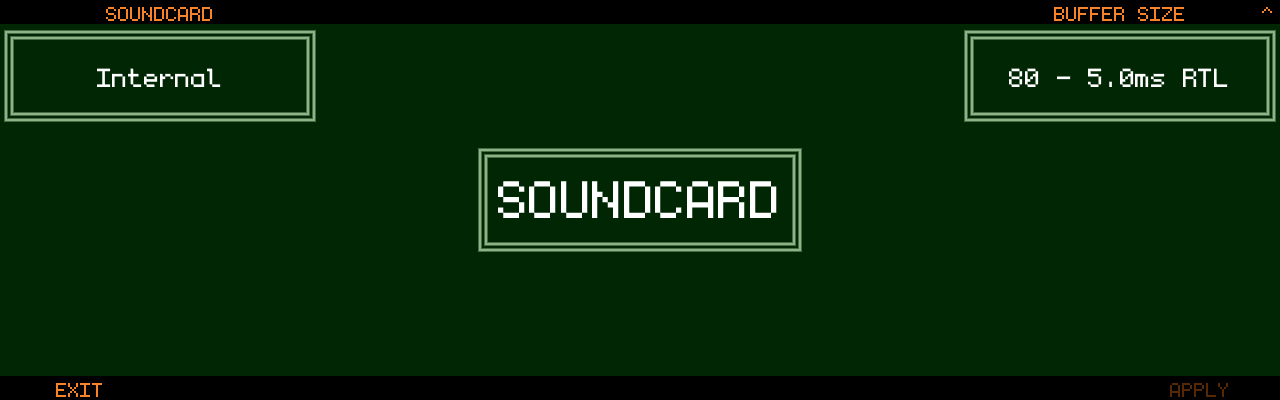
The soundcard setup — internal converters or a class-compliant USB interface. See External Audio for details.
- SOUNDCARD — Internal or a connected USB interface (in the companion app the device iOS is using, shown by name)
- BUFFER SIZE / PERIODS — buffer size (external interfaces:
96or144), and 3–5 audio periods for external interfaces (PERIODS new in v1.2.1); the resulting round-trip latency is shown - RATE — 48k / 44.1k: last-resort compatibility mode for interfaces that cannot run at 48 kHz; audio is resampled and quality/performance suffer (since v1.1.1)
- MODE — SINGLE / MULTI track input mode
- Sub-pages: TRK IN (or CH 1/2), INSERTS, SENDS, EXTERNAL, MAIN OUT, IO NAMES — on MAIN OUT an ALT METRON channel can be selected to route the metronome to its own output instead of the main mix (new in v1.2.1)
- APPLY (Track 8) — apply pending soundcard changes
Debug (Track 8)
- Shows the installed Track8 firmware version (since v1.1.3)
- REBUILD WAVEFORM — throw away the stored waveform overview of the current project and re-read it from the tape. Use this if the drawn waveform no longer matches the audio (new in v1.2.1)
- SHOW FPS / SHOW LATENCY / SHOW MEMORY — on-screen performance overlays
- DEBUG LOG — verbose logging
- LOGS → USB — copy the device logs to a USB stick for a support request
- AUDIO ENGINE (Encoder 8) — for testing: JACK (the default) or DIRECT, Track8’s own audio engine without the JACK server. Turn right for DIRECT, left for JACK; the audio restarts. DIRECT offers every buffer size from 48 to 144 frames on the built-in card and on USB interfaces; switching back to JACK moves the buffer to the nearest size JACK offers (since v1.2.4-SNAPSHOT)
- On units from the second production batch, one more line shows the
power controller: its firmware version, the supply voltage now and the
lowest since switching on, and why the unit last switched off (for
example
last off: brown-out 7.1 V). LOGS → USB then also copies its full log,power-controller.txt(since v1.2.4-SNAPSHOT)