Editing Audio
Track8 uses a destructive editing model:
- Edits are written directly to WAV files
- Undo is available
- No hidden clips or regions
Important
Unlike DAWs:
- No clips
- No non-destructive edits
- Everything modifies the underlying audio
👉 This is intentional (tape workflow)
🖥 Audio Edit (Volume / Pan)
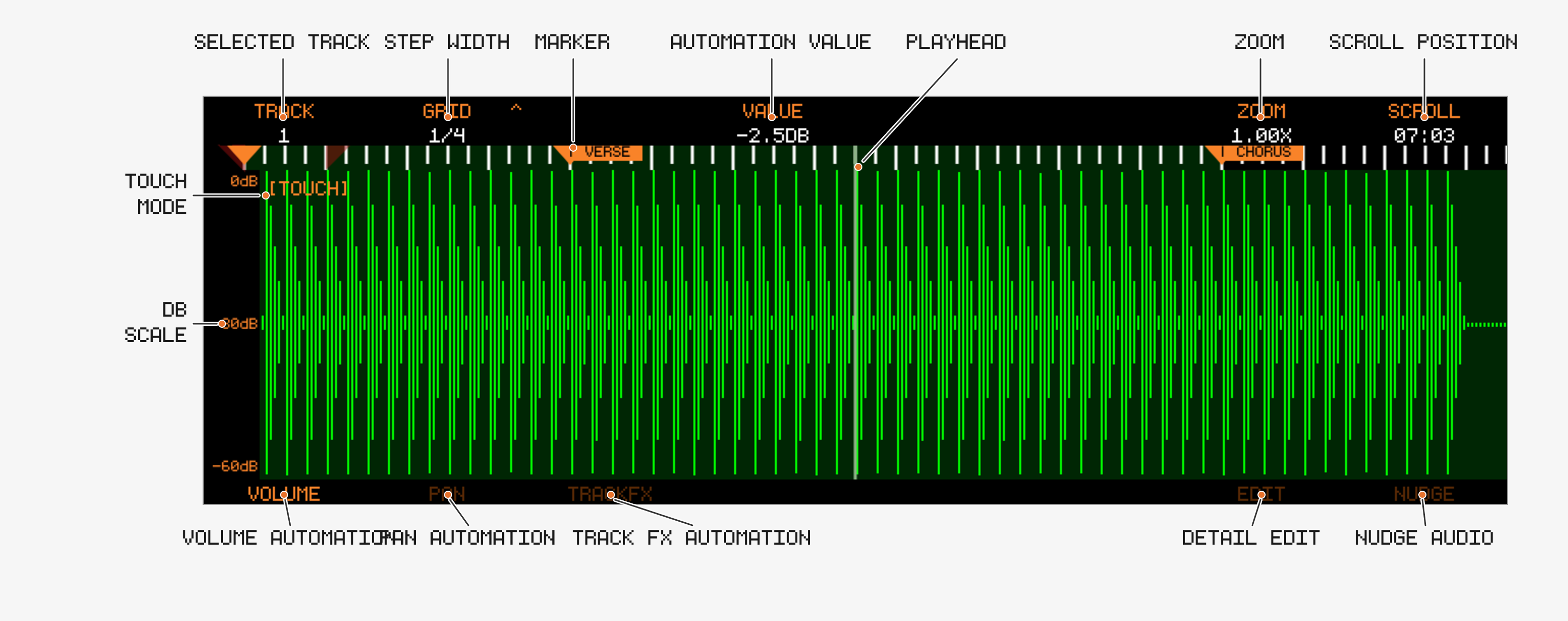
Open Audio Edit with 

Encoders
| Encoder | Function |
|---|---|
| 1 | Select Track |
| 2 | Scroll resolution — push to switch between Grid and ms steps. In Grid mode the beat ruler shows sub-beat grid steps as shorter ticks; in ms mode only beats and bars are drawn (since v1.2.2) |
| 4 | Value / automation at playhead (see below) — push starts an LFO on the lane; SLIDE in Edit mode (push: selection = Loop region), Nudge in Nudge mode (push: confirm) |
| 5 | Start of Edit/Nudge region — push to set Start to playhead (since v1.1.2) |
| 6 | End of Edit/Nudge region — push to set End to playhead. Selects the FX parameter in TrackFX/Return mode |
| 7 | Zoom (0.25x → 2048x) |
| 8 | Scroll timeline — push to move the Edit/Nudge region to the playhead |
Track Buttons
| Button | Mode |
|---|---|
| 1 | Volume automation |
| 2 | Pan automation |
| 3 | TrackFX automation (Filter, Compressor, Sends) |
| 4 | Return automation (external soundcards only) |
| 6 | CLIPMOD — open the Clipboard Modifier; with COPY > CLIP copies the selection and opens the Clipboard Modifier (since v1.1.5) |
| 7 | Edit — region editing |
| 8 | Nudge |
🎛 Automation
You can draw automation for:
- Volume
- Pan
- Track FX:
- Filter
- Compressor
- Sends
- Width of the Track FX 2 page, the last entry of the list (since v1.2.4-SNAPSHOT)
- Return:
INS MIX/INS RETURN, the insert faders of the Track FX 2 page (external soundcards).INS RETURNruns from -24 to +24 dB (since v1.2.4-SNAPSHOT)
Behavior
- Automation is drawn via touchscreen (the
[TOUCH]indicator shows when a screen accepts touch input) - Automated Values are rendered green
- Multiple automation lanes can coexist
- Automation lanes can contain holes — cleared regions fall back to the track’s base value instead of interpolating across (new in v1.2.1)
- Parameters that already have automation are marked with an
*in the TrackFX / Return parameter list, so they are easy to find (since v1.2.0)
Writing automation with Encoder 4 (since v1.1.2)
Encoder 4 shows the current value of the selected parameter at the playhead. Turning it writes an automation point there:
- Works live during playback — ride the encoder and the old points under the playhead are replaced as you go (new in v1.2.1)
- Works while stopped — combine with
SCROLLto place individual values precisely - While an automation recording (
A+A/ATMmode) is running, encoder moves on the Overview and Track Mixer are recorded the same way
〰️ LFO (since v1.2.2)
Push Encoder 4 on any automation lane (Volume, Pan, TrackFX, Return) to generate a tempo-synced LFO into the region between the surrounding Markers. The LFO is written into the lane while you dial it in, so you see it in the lane and hear it during playback right away.
| Encoder | Turn | Push |
|---|---|---|
| 4 | LFO shape: SINE, TRI, SAW DN, SAW UP, SQUARE, S&H | Commit and leave LFO mode |
| 5 | RATE — one cycle per note value, same ladder as GRID (up to 4 whole notes); starts at the current GRID | Shift the phase by 90° |
| 6 | DEPTH 0–100 %, or DELTA -100 to +100 % after a push ( | Toggle Encoder 6 between DEPTH and DELTA |
- The lane’s value at the region start is the LFO’s resting level; set it with Encoder 4 before pushing, or shift it afterwards with
DELTA, which moves the whole LFO up or down by up to half the lane’s range - Volume and
INS RETURNdip down from that level (100 % reaches silence on Volume and -24 dB onINS RETURN), every other lane swings around it, TrackFX frequencies, Q and times in octaves rather than Hz - Every shape except
SAW UPstarts at the resting level, so a volume LFO begins at full level;SAW UPswells up from the trough. On the lanes that swing around the resting level (Pan, TrackFX,INS MIX) every shape with a centre crossing starts there:SINE,TRIandSAW UPrise first,SAW DNfalls first;SQUAREandS&Hbegin at the top - Automation that was in the region is replaced; automation outside it is untouched, and the lane returns to the resting level at the region end. The region is its own section of the lane: automation before or after it is not connected to the LFO — between them the lane reads the fader, exactly as after clearing a region between markers (since v1.2.2)
- Anything other than turning the LFO encoders commits the LFO: moving the playhead, Play, touching the lane, zooming, changing the track or lane, leaving the screen, and
UNDOitself (which then undoes the LFO) - The whole LFO is one
UNDOstep
🧹 Clearing Automation
- Selectively delete automation points with

- Clear automation between the surrounding Markers with
- Volume:
- Pan:
- TrackFX:
- Return:
- Volume:
- With no markers set, the clear extends over the whole tape
- The cleared region becomes a hole: it reads the track’s base value
- Clears go on the undo stack like any other edit
✂️ Region Editing
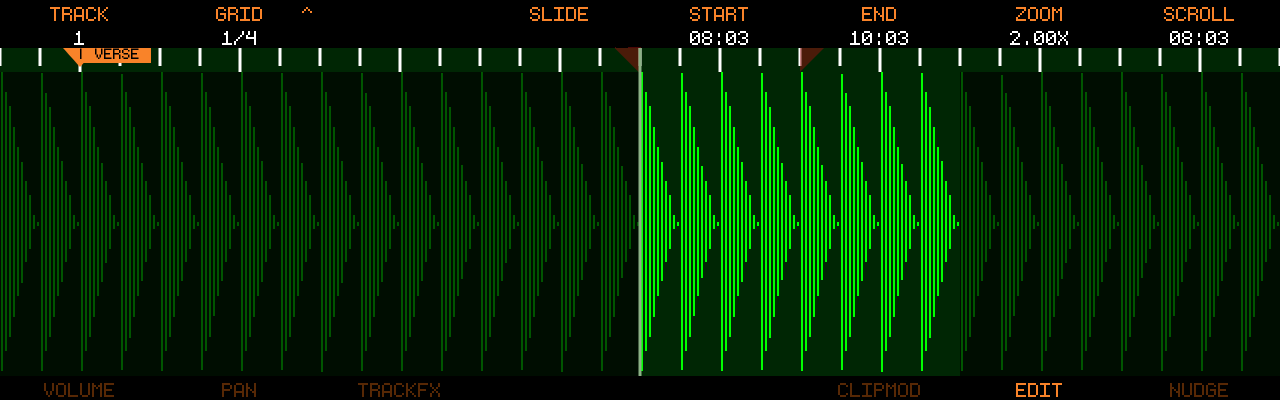
Region Editing (Track Button 7) allows for fine grained editing of a single Track. In this mode you are not bound to the Regions set by Markers.
Workflow
- Select start position (Encoder 5, or push Encoder 5 to grab the playhead)
- Select end position (Encoder 6, or push Encoder 6 to grab the playhead)
- Apply:
- Cut
- Copy
- Paste
Rules
- Paste always happens at playhead
- Cut and Copy Operations only affect selected region
- Hold
Helpers
SLIDE(Encoder 4): moves Start and End together inGRID/JUMPincrements, keeping the region length (new in v1.2.1)- Selection = Loop (since v1.2.2): push
SLIDE(Encoder 4) to setSTART/ENDto the current Loop region —SELECTION = LOOPconfirms it, and the playhead jumps to the newSTARTso the selection is on screen (not while recording). Use it to edit one track over a long stretch without touching the Markers: set the loop around the part on the overview (it can span as many Markers as you like), open Audio Edit, Track Button 7, pushSLIDE, Cut. Unlike LOOP + Cut on the overview, only the selected track is cleared and every Marker stays where it is. With no loop set the push showsNO LOOP REGIONand changes nothing; the loop on/off state does not matter - Selection off (since v1.2.2): press Track Button 7 again while in Region Editing to switch the selection off — the track draws all bright inside the usual EDIT frame,
START/ENDread-, playback runs past the End andSTART,ENDorSLIDEbrings it back exactly as it was (the first click only restores it), pushingSTART/ENDbrings it back with that end on the playhead, and pressing Track Button 7 once more toggles it on. Cut / Copy showNO SELECTIONwhile it is off. Entering Region Editing or the screen always starts with the selection on 
LOOPis enabled or the selection is switched off (since v1.2.0)- Modification highlights (
UTILITY→MOD HI) are also shown in this view (since v1.1.5)

↔️ Nudge Editing
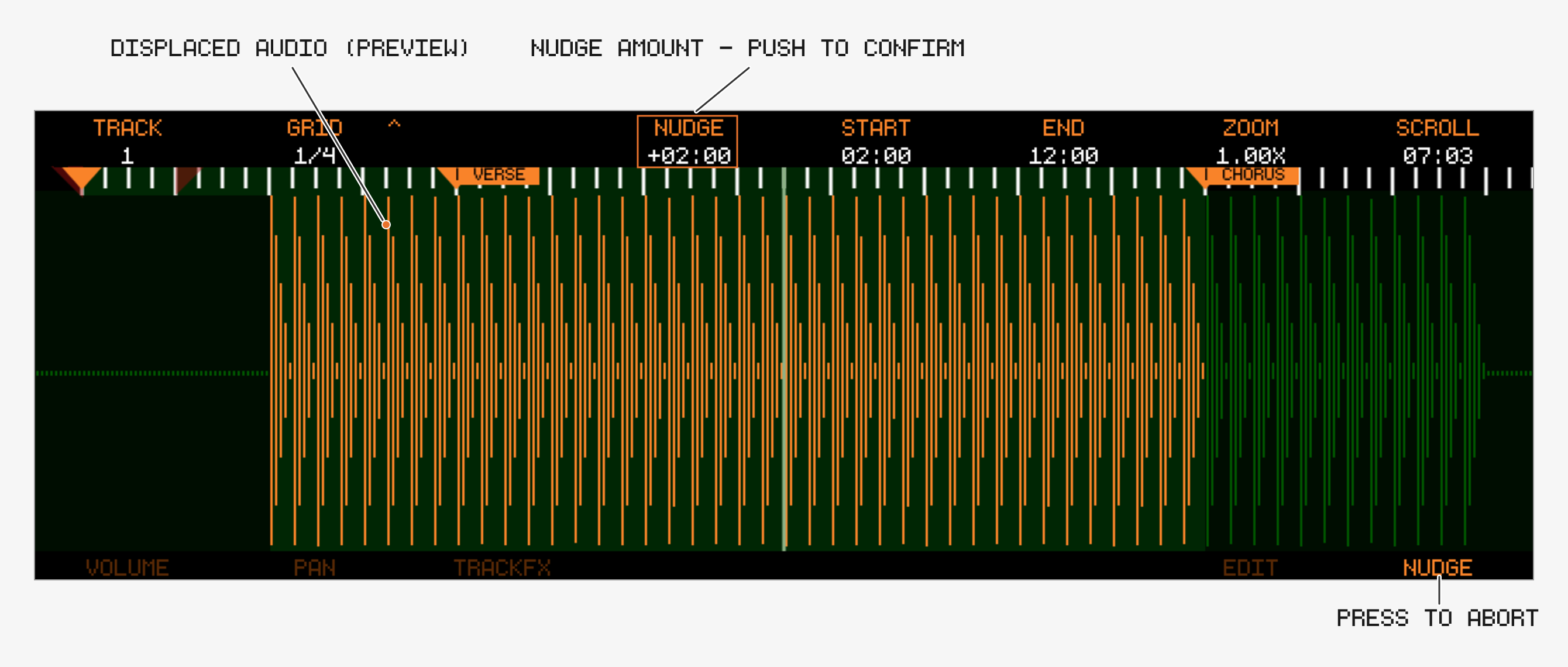
Nudge (Track Button 8) moves selected audio on the timeline. The changes can be pre listened without committing the edit to tape.
Behavior
- Select start/end position with Encoders 5/6
- Move the audio by turning Encoder 4
- Highlighted region = active nudge
- Pre listen the change by pressing play (It’s useful to create a loop region around that change, so you can listen to the change repeatedly)
- Confirm the change by pushing Encoder 4
- The Nudge region is limited to 4 minutes (since v1.2.1)
Cancel
- Switch screen OR
- Press any mode Track Button
🚀 Undo

- See Audio Overview for the Undo/Redo stack details
