Settings & Projects
Press the Settings button to open the Settings screen (since v1.1.3 no SHIFT needed — SHIFT + Settings opens the USB Browser instead). Press Settings again to cycle to the Utility screen and back (new in v1.2.1).
Shortcuts from the Settings screen:
- Hold Settings + press Audio — open the Soundcard settings
- Hold Settings + press Midi — open the MIDI settings
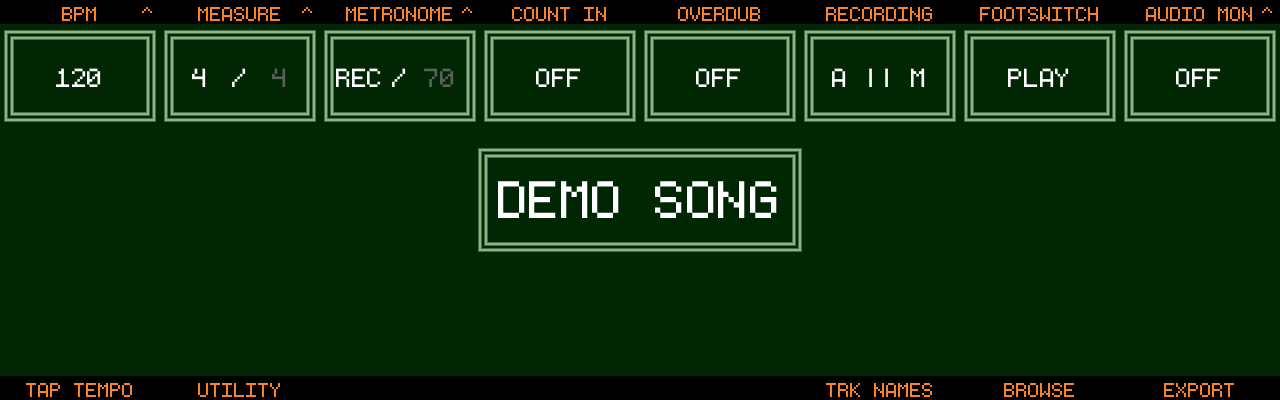
Project Settings
These settings are stored per project.
| Encoder | Setting | Values |
|---|---|---|
| 1 | BPM | 30–360. Push to switch between whole BPM and decimals (new in v1.2.1). Whole mode: SHIFT = steps of 10. Decimal mode: steps of 0.01, SHIFT = 0.1 |
| 2 | MEASURE | Time signature. Push to cycle numerator (1–32) / denominator (1–64, powers of 2) |
| 3 | METRONOME | OFF / REC (only while recording) / ON. Push to switch to the metronome level. Beats follow the time signature’s denominator — in 7/8 it clicks every eighth with the accent on 1 (fixed in v1.2.1). The click sound is chosen in Utility with Encoder 4 (since v1.2.4-SNAPSHOT) |
| 4 | COUNT IN | OFF or 1–16 beats, counted in the same beat as the metronome (7 beats = one bar of 7/8) |
| 5 | OVERDUB | ON / OFF |
| 6 | RECORDING | A && M records Audio and MIDI together, A || M records only the domain you are in |
| 7 | FOOTSWITCH | PLAY / RECORD / HOLD REC / TUNER / MARKER |
| 8 | AUDIO MON / MIDI MON | Push to cycle (MIDI MON new in v1.2.1). OFF / ON / PUNCH — PUNCH monitors only while the playhead is inside the punch brackets, whether or not punch recording is armed, so you can rehearse a punch-in and hear exactly what the recorded result will sound like (new in v1.2.1). Audio: switch OFF when using speakers and a microphone. MIDI: controls whether input is echoed to MIDI Out |
Track buttons:
- TAP TEMPO (Track 1) — tap at least twice to set the BPM
- UTILITY (Track 2) — open the Utility screen
- TRK NAMES (Track 6) — name your audio and MIDI tracks
- BROWSE (Track 7) — open the Project Browser (see below)
- EXPORT (Track 8) — export a mix or stems to USB, or bounce to a track
(since v1.2.0)
- Bouncing to a track overwrites that track’s audio from the insert point on — and a track is the default destination whenever no USB stick is plugged in. EXPORT therefore asks first: OVERWRITE (Track 6) goes ahead, Cancel (Track 3) leaves the track untouched (since v1.2.2)
- Confirmation dialogs — this one, the delete prompts, tape truncate — can also be answered by tapping the on-screen buttons, and every other control is locked until you answer (since v1.2.2)
Settings while recording
The Settings screen stays reachable during a take — that is how you toggle the metronome mid-pass. Controls that would break the recording (BPM, tap tempo, time signature, overdub, recording mode, and the doors to Utility / Track Names / Browse / Export) are refused with an on-screen error while a take is rolling (new in v1.2.1).
Project Browser
Open with BROWSE (Track 7) on the Settings screen. The browser opens on the project you are in: its disk comes on show and the project is highlighted (since v1.2.4-SNAPSHOT).
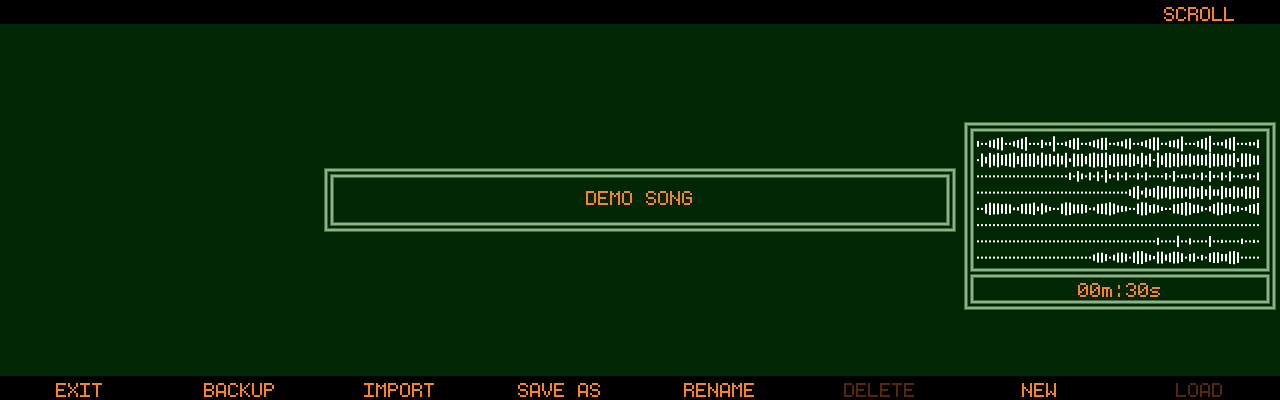
- Scroll projects with Encoder 8 — the selected project’s waveform loads
as a preview. Projects are sorted alphanumerically (new in v1.2.1).
Hold

JUMP A-Z) — the quick way through a long list of prefix-named projects (since v1.2.4-SNAPSHOT) - LOAD (Track 8 or push Encoder 8) — switch to the selected project
- BACKUP (Track 2) — back up the selected project to a USB stick
- IMPORT (Track 3) — import a backup from a USB stick
- SAVE AS (Track 4) — save the current project under a new name; Encoder 7 on the keyboard picks the copy’s disk (starts on the disk you are looking at)
- RENAME (Track 5) — rename the selected project; Encoder 7 on the keyboard picks its disk. With the name left as it is the button reads UPDATE and only the disk changes, and the project moves to its new disk at once
- SHIFT + Track 6 — delete the selected project (the active project cannot be deleted; a confirmation dialog appears)
- NEW (Track 7) — create a new project; Encoder 1 on the name
keyboard picks a template (
TEMPLATE: ---= empty project; a highlighted template is preselected), Encoder 7 a disk (DISK: ---= unlabelled) - Encoder 7 — slide along the row of disks (since v1.2.4-SNAPSHOT)
- Leaving any of these keyboards with EXIT returns to the browser

Project Disks
(since v1.2.4-SNAPSHOT)
Think of a shelf of floppy disks: every project sits on exactly one, and
the browser shows one disk at a time with its neighbours peeking in from
the sides. A disk is a label — a short word (up to 12 characters) such as
ALBUM, LIVE, IDEAS or a client name — with a colour. Nothing moves
in the file system, and a disk stays on the shelf until you delete it,
even when it is empty.
The shelf (Encoder 7), from left to right:
UNLABELED— every project without a label. If you never label anything, this is simply your project list.- One disk per label, in alphabetical order, with its name in its colour as the header over the list.
TEMPLATES— your templates.NEW DISK— an empty page: push Encoder 7 here to create a disk on the keyboard (Encoder 8 picks its colour). The browser then shows the new, empty disk and NEW creates the first project in it.
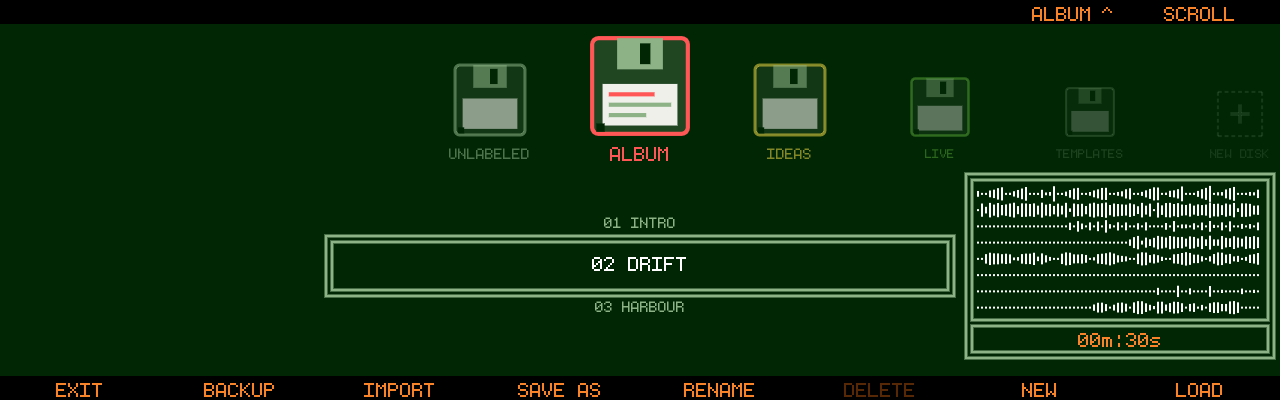
The shelf is drawn as a row of floppy disks across the top of the screen, one per disk in its colour with its name underneath. The disk on show is the big one in the middle; the others get smaller and dimmer the further out they sit and run off both edges of the screen, so you always see where you are on the shelf. Turning Encoder 7 slides the whole row by one disk; the caption under the encoder repeats the disk’s name. The disk’s project list and the waveform preview sit underneath, side by side. Each disk remembers which project you had highlighted until the next restart, except the disk holding the project you are in: that one always comes back on the current project, and it is the disk the browser opens on.
- Push on a disk opens RENAME DISK: rename it (and change its
colour) for every project in it. The
^on the caption shows whenever push does something. UNLABELED.
Putting a project in a disk
The disk is decided where the name is: Encoder 7 on the NEW,
SAVE AS and RENAME keyboards picks it (DISK: --- = unlabelled),
like Encoder 1 picks a template. NEW and SAVE AS start on the disk you are
looking at, RENAME on the project’s current disk. To move an existing
project, press RENAME, turn Encoder 7 and confirm — with the name
untouched the button reads UPDATE and nothing is renamed. Like APPLY in
the marker editor, the button lights up as soon as the name or the disk
differs from what you opened with. A project never changes disk by an
accidental encoder turn: it always goes through a keyboard.
Disks travel with the project: RENAME, SAVE AS, BACKUP and
IMPORT keep them, and a disk that arrives with an import joins your
shelf. On the SSD a disk is the one-line file label inside the project
folder; the shelf itself lives in the global settings.
Project Templates
(since v1.2.1)
A template is a project without content: it keeps the settings (BPM, time signature, metronome, record modes), track names and colours, MIDI channels, mixer levels / pans / mutes, Track FX, sends, Master FX and Mastering, external channel mapping and grid preferences — but no audio, MIDI, automation, markers, loop or punch. It also carries a setup: the audio interface configuration, MIDI sync settings, threshold record and tuner settings (channel names and device profiles stay as they are).
- Templates live on their own
TEMPLATESdisk in the browser, listed by name (no waveform preview). With a template highlighted, LOAD turns into FROM TMP: enter a name for the new project (a random one is suggested) and it is created from the template - RENAME and
- The template’s setup is applied when the project is created. The active
audio interface itself is never switched automatically: if the template
was saved with a different interface, a hint asks you to select it in
UTILITY→AUDIO - Templates live in
templates/next toprojects/on the SSD
Projects load faster since v1.2.1: the waveform overview is cached with the project. The first load of an older project (or after editing its files outside Track8) rebuilds the cache and may take a moment longer.
You can also let Track8 ask for a new project on every start — see the
AT STARTUP setting in Utility (since v1.1.4).
Naming Things
Whenever a name is needed (projects, tracks, markers, exports) the input keyboard opens:
- Tap SHIFT on the keyboard for one uppercase letter; double-tap for Caps Lock, single tap to exit it (since v1.1.3)
- Left / Right buttons move the text cursor; the Record button deletes the character at the cursor (new in v1.2.1)
- When creating a new project, push Encoder 8 (dice) to generate a random project name (since v1.1.3)
- A standard USB keyboard can be used to type; only characters present on the touch keyboard are registered, and Enter confirms (new in v1.2.1)
- Names that end up on disk (projects, templates, backups, exports, saved
WAV / MIDI clips) cannot contain
/ \ : * ? " < > |— those keys are greyed out and ignored, and a name made only of dots cannot be confirmed (new in v1.2.1)